
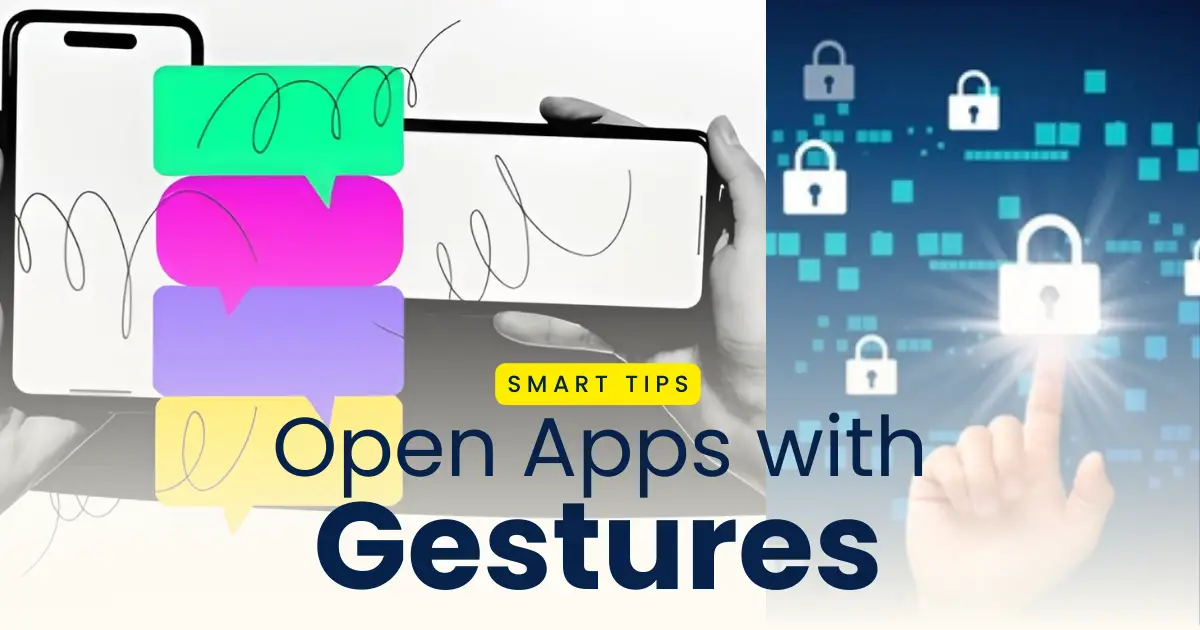
Gesture mobile unlock app has been a popular trend among mobile users these days. Smartphone users can now unlock their phone using gesture shortcuts and also open any app on their mobile with a shortcut gestures. The gesture shortcut app allows you to unlock your phone and open apps on your phone by drawing simple gestures on the screen. You can customize your shortcut gestures by performing gestures such as swipe, drawing patterns, tap, or simple motions. You don’t need any complex settings or search for the app on your app drawer to launch your favourite application with the use of gesture shortcut app. These app allows you to open any app easily from any where on the screen instantly.
The gesture lock is a very powerful way of unlocking and accessing your mobile using your signature or any other gesture. You just need to draw some simple motions to open apps on your phone. In this post, we explain best gesture app shortcut to unlock your phone and open apps on your phone faster, along with a step-by-step guide and clear instructions for the same.
Why Use Gesture Shortcuts on Your Phone
Using complex pattern or password to unlock your phone can sometimes be very frustrating and you may want to avoid that. You can skip using your patterns or passwords to unlock your phone as gesture shortcuts enables you to use simple gesture to open your phone. These shortcuts also allows you to open any apps from your phone launcher easily using simple motions. You should use the gesture shortcut on your phone for the following reasons:
- You can flex among friends by using your signature to unlock your phone
- It allows you to open apps on your phone faster and easily
- You can avoid using buttons and app launcher
- It helps you use your phone with one hand easily
- It enable you to customize and personalize using your phone
- You can use gestures to both on lock screen as well as screen off
Best Gesture Shortcuts for Faster Phone Access
There are various gesture shortcuts inbuilt on your phone that enables you to use your phone smartly and effectively. You do not need any external app to access these gesture shortcuts. The inbuilt gesture shortcuts on your smartphone are:
Unlock & Open Home Screen: You can turn off your mobile screen and wake your screen using the Double-tap to Wake feature on your phone’s settings.
Quick App Launcher: You can see the recently used apps and launch them as per your requirement by swiping up and holding from the bottom of the screen.
Favorite App Drawer: You can access the quick app launcher to launch your favourtie apps from anywhere on the screen by swiping right or left as per your mobile.
Camera Shortcut: You can launch the camera app on your phone without even unlocking it by swiping up from the bottom corner. You can open the camera app on your phone by pressing the power button two times on some devices.
Lock Screen Quick Access: In addition to this, you can also customize some gestures like double-tap or triple-tap on the back of your phone to access various functions such as screenshots, flashlight, emergency dial, etc,.
How to Set Up a Gesture App Shortcut
It doesn’t take any compelx set up or customizations to set up a gesture app shortcuts on your phone. You can unlock your phone or open any apps on your phone using you gesture in the following setps:
Step 1: Download and install a trusted gesture app on your mobile.
Step 2: Grant the necessary permission required for the functionality of the app.
Step 3: Select the function (unlock phone, open app or enable function) for which you want to set a gesture.
Step 4: Choose the app for which you want to set a gesture.
Step 5: Select the gesture type (swipe, tap, shape) that you want for the function you want to use.
Step 6: Draw the gesture on the screen and confirm it.
Step 7: Save the gesture and test it on the home screen and lock screen to see it works effectively.
Gesture Security Considerations
The Gesture shortcuts are designed to help you access your smartphone fast and easily. This doesn’t mean that it bypass the security on your device such as PIN, pattern, password, fingerprint or face unlock. You should always use a strong and secured authentication along with the gestures to access your phone so that no unauthorized access is done with your phone.
Always set gestures to launch apps on your phone only after your phone is unlcoked so that you can only open and use the apps after you unlock it using your biometric for safety and privacy of your device.
Tips for Effective Gesture Use
Before using gesture shortcut apps to unlock your phone or launch any apps on your phone, you should know this tips and tricks to get the best experience.
- Do not use easy gestures that are easily guessable by anyone
- Do not use complex gestures that you you don’t know
- Always use gestures along with your biometric to unlock your mobile
- Turn off gestures that conflicts with your inbuilt phone gesutre
- Use gestures that works both in landscape as well as portrait mode
- Use similar gestures everytime so that it doesn’t trigger accidently
Conclusion
You can make the best experience of interacting with your phone using simple gestures. You can use the inbuilt gestures on your phone or thorugh the gesture app to either unlock your phone or launch your favourite application easily. The gesture shortcuts helps you access the commonly used features and apps instantly without any delay. The gestures can be customized or personalized based on your preference and personalization. You should only use a trusted gesture app from the playstore or appstore so that you do not compromise on privacy and security of your device.
Kottpalama gopalapatnam Visakhapatnam
I want driving licence
I want to drive safely
I want driving licence
I was drive safely
I want driving licence for drive two wheeler bick safely and properly please please accept my request
I could not break the traffic rules and I safely drive my bike all permissions and driving licence properly please I want driving licence requesting
Hi
Hi
I am driving licence
Hi
Driving licence
Driving lessons
I am my password is eroor
My phone 📱 password is maranthuten
Hi
Driving licence
Hi
Look
Pattern password
I wanted licence
I wanted House
I wanted car
Redme
Pattern lock
Mobile Lock
it’s okay friend
موبائل
I forgot my phone lock pattern
Pattern lock
Please pin lock vendum
Look
Samsung a06
Super 👍🏿😊
Lock
Siddu
Pin lock
Hii
Hlo
Lock
Pattern lock